

How to Set Up a Contact Form Without Coding
Reading Time: 6 minutes

Here’s something we hear all the time from DIY website owners: “I don’t have a contact form because I don’t know how to set one up.”
If that sounds familiar, you’re in the right place. The good news is, you absolutely do not need to know how to code to add a contact form to your WordPress site (although our pros can totally handle that for you).
A contact form is one of the most important things you can have on your website.
- It gives visitors an easy, low-pressure way to reach out
- Keeps your personal email address off your site (which helps cut down on spam)
- And it makes your business look polished and professional.
Without one, you’re likely losing potential customers who aren’t ready to pick up the phone or open their email app.
In this post, we’ll walk you through three of the most popular WordPress contact form plugins — WPForms, Contact Form 7, and Gravity Forms — and give you a step-by-step guide to getting your form up and running today.
First, Why Do You Need a Contact Form?

Before we jump into the how-to, let’s quickly cover the why. Some DIY site owners just post their email address on their website and call it a day. While that works, it comes with some real downsides:
- Spam bots scan websites for email addresses and add them to mass marketing lists. A contact form protects you from this.
- Forms guide the conversation. You can ask visitors for the information you actually need — like their name, phone number, budget, or project type — instead of getting a one-line email that says “How much do you charge?”
- Forms feel professional. A clean, well-placed contact form signals that you take your business seriously.
- They’re easier for visitors. Not everyone wants to open their email client. A form lets people reach out without leaving your site.
The Three Best Contact Form Plugins for WordPress

There are dozens of form plugins out there, but these three are the most widely used, well-supported, and beginner-friendly options available right now.
1. Gravity Forms — Best for Growing Businesses & Advanced Functionality
This is our top pick! Gravity Forms is a premium contact form plugin built for businesses that need more than just a simple “name, email, message” form. It’s incredibly powerful, flexible, and scalable — which is exactly why we use it on nearly all of our client websites here at Raney Day Design.
While it doesn’t offer a free version, it more than makes up for that with advanced features like conditional logic, multi-step forms, file uploads, payment integrations, and seamless connections to CRMs and email marketing platforms. Whether you’re building a detailed intake form, a lead generation funnel, or a fully automated workflow, Gravity Forms can handle it.
Another major advantage is reliability. It’s well-supported, regularly updated, and built with developers and growing businesses in mind. It won’t box you in as your website evolves.
Best for: Businesses ready to move beyond a basic contact form and build more advanced, scalable systems on their website.
Cost: Paid plans start at approximately $59/year.
2. WPForms — Best for Beginners
WPForms is widely considered the most user-friendly contact form plugin on the market, and it’s our top pick for DIY site owners. It features a drag-and-drop builder, meaning you literally click and drag fields to build your form — no code required at any point. The free version (WPForms Lite) is plenty powerful for a basic contact form, and the paid plans unlock more advanced features like conditional logic, payment forms, and email marketing integrations.
Best for: Anyone who wants something simple, fast, and polished without a learning curve.
Cost: Free plan available; paid plans start around $49/year.
3. Contact Form 7 — Best Free Option
Contact Form 7 has been around since 2009 and is one of the most installed WordPress plugins of all time. It’s completely free, lightweight, and gets the job done. The trade-off is that it’s not as visual as WPForms — you’ll configure your form using simple shortcode-style markup rather than a drag-and-drop interface. It’s not complicated, but it does have a slightly steeper learning curve for total beginners.
Best for: Budget-conscious site owners who don’t mind a little extra setup time.
Cost: Completely free.
Step-by-Step: Setting Up a Contact Form with WPForms
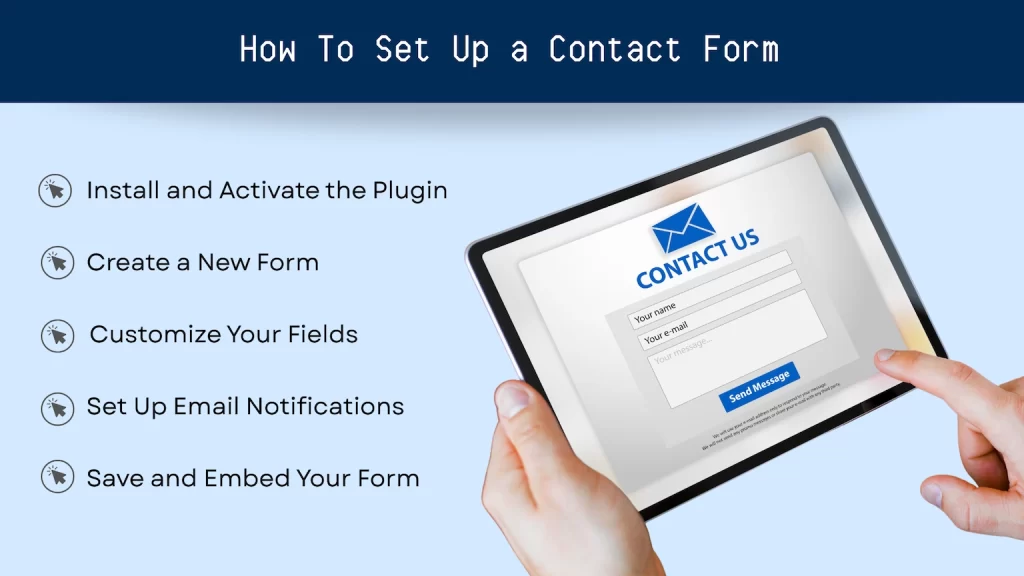
We’ll walk through WPForms here since it’s the most beginner-friendly option — but the general process is similar across all three plugins.
Step 1: Install and Activate the Plugin
From your WordPress dashboard, go to Plugins > Add New and search for “WPForms.” Click Install Now, then Activate. You’ll see a new WPForms menu item appear in your dashboard sidebar.
Step 2: Create a New Form
Click on WPForms in your sidebar, then click Add New. Give your form a name (something like “Contact Form” works fine) and choose the Simple Contact Form template. WPForms will generate a basic form with Name, Email, and Message fields already in place — which is all most websites need.
Step 3: Customize Your Fields
This is where the drag-and-drop builder shines. Want to add a phone number field? Drag it in. Want to ask what service they’re interested in? Add a dropdown menu. You can rearrange fields, mark them as required, and edit the placeholder text — all with simple clicks. Keep it simple: the shorter your form, the more likely people are to fill it out. Name, email, and a message field is usually all you need to start.
Step 4: Set Up Email Notifications
Click on the Settings tab inside the form editor, then select Notifications. This is where you tell WPForms where to send the form submissions — make sure the email address here is one you check regularly. You can also set up a confirmation message that visitors see after they submit the form, like “Thanks for reaching out! We’ll be in touch within 24 hours.” A small touch that goes a long way toward building trust.
Step 5: Save and Embed Your Form
Hit Save in the top right corner. Now it’s time to add the form to your Contact page. Navigate to Pages > Contact (or whatever your contact page is called), and open the page editor. Click the + button to add a new block, search for WPForms, and select your form from the dropdown. Hit Publish or Update, and your form is live!
Make Your Contact Form Work Harder
Once your form is set up, here are a few easy ways to get even more out of it:
- Add spam protection. All three plugins mentioned above include built-in spam filtering, and most integrate with tools like Google reCAPTCHA to block bots. Plugins like Gravity Forms even include features like a “honeypot” — an invisible field that only bots can see. If that field gets filled out, the submission is automatically flagged as spam. Make sure these settings are enabled so your inbox stays clean.
- Don’t ask for too much. Every extra field you add reduces the chance someone will complete the form. Stick to the essentials and add more only if your business truly requires it.
- Make it easy to find. Your contact form should live on a dedicated Contact page, but consider adding a link to it in your main navigation, your footer, and even within blog posts or service pages.
- Test it yourself. After you set up your form, submit a test entry and make sure the notification email lands in your inbox. Check your spam folder too — sometimes form notifications get filtered there.
- Respond quickly. A contact form is only as valuable as your response time. Aim to reply to all inquiries within 24 hours — it sets a great first impression.
You’ve Got This
Setting up a contact form is one of those tasks that sounds more intimidating than it actually is. With a plugin like WPForms, you can have a professional-looking form on your site in under 30 minutes — no coding, no tech headaches, no hiring a developer.
And once it’s live, you’ll wonder how you ever went without it. A good contact form quietly works in the background, capturing leads and making it easy for the right people to find their way to you.
Want a website that does the heavy lifting for you?
At Raney Day Design, we build WordPress websites that are beautiful, easy to manage, and set up to convert visitors into customers. From contact forms to full site builds, we handle the details so you don’t have to.
Let’s build something great together.
Share This Post
If you read this Do It Yourself WordPress post and still need help, we got you! Either drop a message to us in the chat or Schedule a Call!
