Your WordPress dashboard says everything is up to date. Great! You can cross that off your list, right?
Not so fast!
Keeping WordPress core, themes, and plugins updated is an important part of website maintenance, but it’s only the beginning. A website can have the latest updates installed and still have broken forms, outdated server software, failed backups, or security gaps hiding in the background.
And when you’re managing websites for multiple clients? Those little issues can turn into big headaches fast.
Whether you’re a freelance developer, part of a web design agency, or responsible for maintaining client websites, having a reliable maintenance process helps you catch problems before they affect your clients’ businesses.
Here are seven things every WordPress developer should check beyond routine updates.
1. Make Sure Backups Actually Work
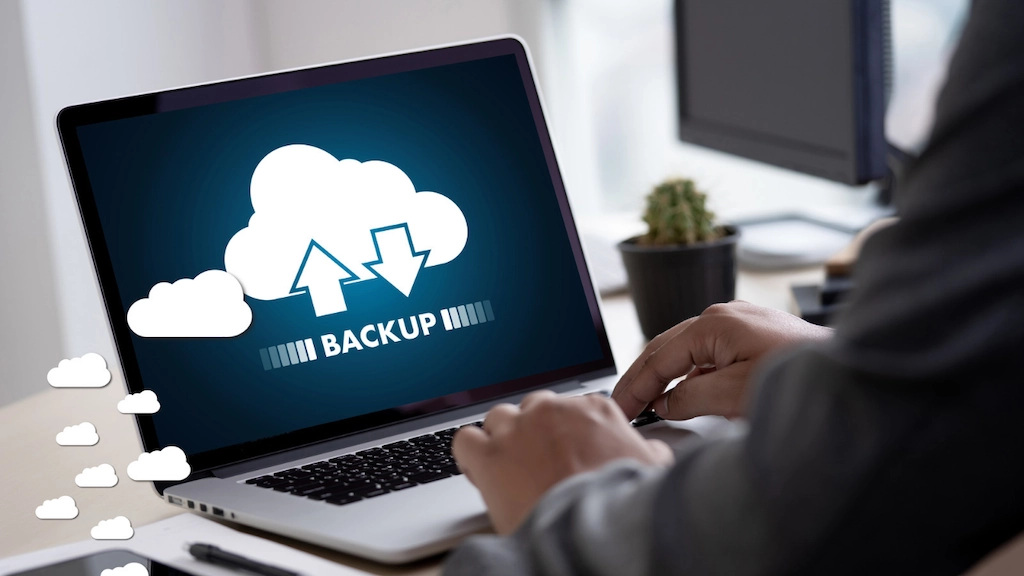
Having a backup is great. Having a backup you can restore is even better.
Backups can fail, run without capturing everything you need, or become outdated without anyone noticing. If something goes wrong, discovering that your latest usable backup is from three months ago is not exactly a fun day at the office.
What to check:
- Confirm that backups are running on schedule.
- Make sure both website files and the database are included.
- Verify that backups are stored somewhere accessible and separate from the live website when possible.
- Periodically test the restoration process.
Don’t assume a green checkmark means you’re covered. Know that your backup strategy works before you need it.
2. Review Your PHP Version and Hosting Environment
WordPress doesn’t operate in a vacuum. It depends on the server environment behind it, including PHP and database software.
An outdated PHP version can create security concerns, limit compatibility, and affect performance. Hosting configurations can also contribute to slow loading times, errors, and reliability issues.
Your hosting provider matters, too. Reliable hosting is an important part of keeping a WordPress website secure, stable, and running smoothly. If you’re constantly dealing with performance issues or struggling to keep your hosting environment up to date, it may be time to reevaluate your setup.
At Raney Day Design, we offer website hosting services to help businesses keep their websites online and supported.
What to check:
- Review the PHP version in WordPress under Tools → Site Health → Info → Server.
- Confirm that the version is supported and compatible with the site’s WordPress version, theme, and plugins.
- Review any Site Health warnings.
- Check with the hosting provider before making major environment changes.
Before upgrading PHP, back up the site and test compatibility. A newer version is not automatically a safe change for every existing installation.
3. Test the Website’s Most Important Features
A website can look perfectly normal while something important is broken behind the scenes.
Maybe a contact form stopped sending emails. Maybe an appointment booking tool is acting up. Maybe a payment integration failed after a plugin update.
These are the kinds of problems that can cost a client leads, sales, and trust.
What to check:
- Submit contact forms and confirm messages arrive.
- Test booking, checkout, and payment processes where applicable.
- Check newsletter signups and other integrations.
- Verify that important buttons and calls to action lead to the right places.
- Review confirmation messages and automated emails.
Prioritize the features that directly affect the client’s business. A broken decorative animation is annoying. A broken lead-generation form is a much bigger problem.
4. Check Security Beyond Installing Updates

Updates help address known vulnerabilities, but they aren’t a complete security strategy.
Client websites also need appropriate access controls, monitoring, and protection against unauthorized activity.
What to check:
- Remove user accounts that are no longer needed.
- Review administrator permissions and use individual accounts instead of shared logins.
- Confirm that multifactor authentication is enabled where available.
- Review security alerts and suspicious activity.
- Check that HTTPS is working correctly across the website.
- Remove unused plugins and themes that are no longer needed.
Also, make sure clients understand that security is an ongoing responsibility. No single plugin can guarantee that a website will never be compromised.
5. Look for Plugin and Theme Bloat
It’s easy for a WordPress website to collect plugins over time. A client needs a new feature, someone installs a plugin, and six months later nobody remembers why it’s there.
The problem? Unnecessary plugins can add maintenance overhead, create compatibility concerns, and introduce additional security risks.
What to check:
- Identify inactive plugins and themes that aren’t needed.
- Review whether active plugins still serve a useful purpose.
- Look for overlapping features that could be handled more efficiently.
- Check whether plugins and themes are maintained and compatible with the current setup.
- Investigate plugins that are causing errors or performance issues.
Don’t delete something just because it looks unnecessary. Confirm what it does and whether the website depends on it first. Then remove what you can safely retire.
The goal isn’t to have the fewest plugins possible. It’s to have the right tools for the job.
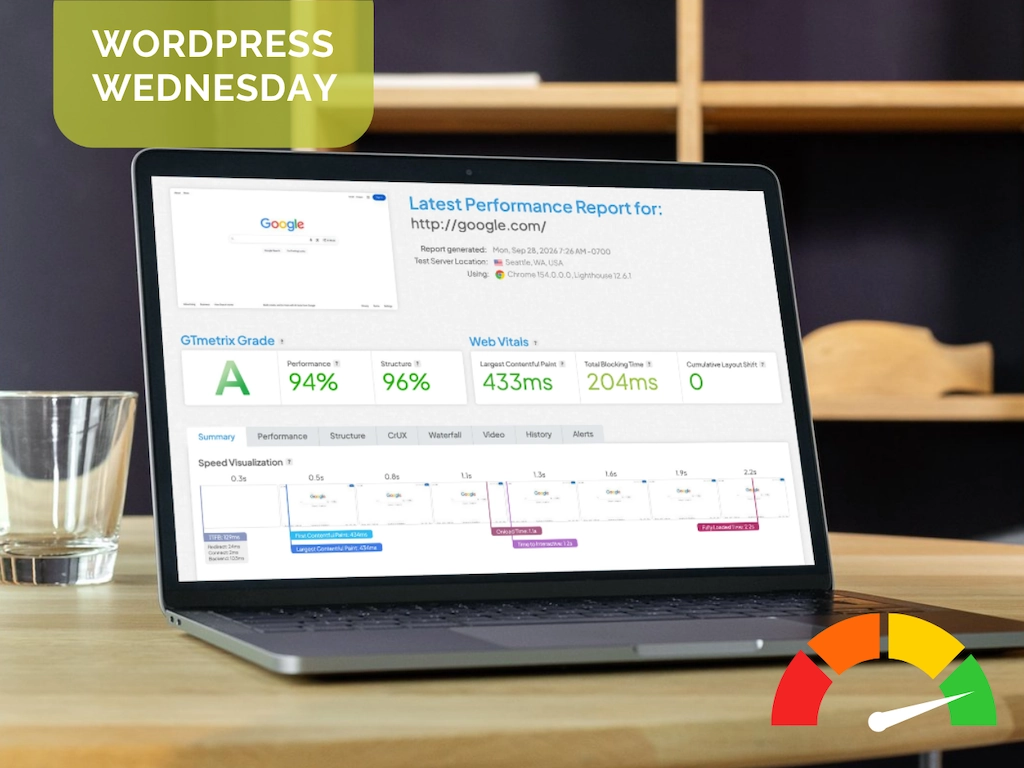
6. Monitor Website Speed and Performance
Remember when the website launched and everything felt fast?
A few months and several new plugins later, things might look a little different.
Large images, third-party scripts, bloated page layouts, caching issues, and hosting limitations can all affect performance. And a site that loads slowly can frustrate visitors before they even get to the good stuff.
What to check:
- Run periodic performance tests.
- Review Google’s Core Web Vitals and other relevant performance metrics.
- Optimize oversized images.
- Review unnecessary scripts, embeds, and tracking tools.
- Check caching and hosting performance.
- Compare results over time rather than relying on a single test.
Don’t chase a perfect score just for bragging rights. Focus on improvements that make the website faster, easier to use, and more effective for visitors.
7. Run a Quick Site Health and Functionality Check
WordPress includes a built-in Site Health tool that can flag potential problems with the website’s configuration and server environment.
It’s a useful starting point, but it shouldn’t be your only checkpoint. Automated checks can’t tell you everything about how a real visitor experiences a website.
What to check:
- Review Tools → Site Health → Status for critical issues and recommended improvements.
- Look for outdated software and configuration warnings.
- Check important pages on desktop and mobile.
- Review navigation, links, images, and key page layouts.
- Confirm that search engines can access pages that should be indexed.
- Look for unexpected errors or changes since the last maintenance check.
Think of Site Health as an early system, not a substitute for a hands-on review.
Make Website Maintenance a Process, Not a Panic Button
The best time to discover a website problem is during a routine maintenance check, not when a client calls because their contact form has stopped working or their homepage suddenly looks broken.
A consistent process helps you catch issues earlier, reduce surprises, and give clients greater confidence in the websites you’re managing.
It also makes your own workload more predictable. Instead of reacting to every problem as an emergency, you can build a maintenance routine around scheduled checks, documented results, and clear priorities.
Your WordPress Maintenance Checklist
Before you call a maintenance check complete, ask:
- Are backups running and restorable?
- Is the server environment supported and compatible?
- Do forms, checkout, bookings, and integrations work?
- Are security settings and user permissions appropriate?
- Are unnecessary plugins and themes removed?
- Is website performance being monitored?
- Have Site Health warnings and important pages been reviewed?
You don’t have to do everything every day. The key is knowing what needs to be checked, how often it needs attention, and who is responsible for it.
The Bottom Line
A healthy WordPress website is about more than a dashboard full of green checkmarks.
It’s about knowing that the site is backed up, secure, functional, and ready to do its job for the business behind it.
A consistent maintenance routine helps you protect your clients’ investments, identify potential issues earlier, and spend less time putting out fires.
So the next time a client website says it’s up to date, celebrate the small win. Then keep going.
Because up to date doesn’t always mean up to par.
And that’s the difference between simply updating a website and actually maintaining it.
Need help keeping your WordPress website in shape? Raney Day Design helps businesses make the most of their online presence, from website support to digital marketing strategy. Let’s talk about what your website needs next.